If you use SharePoint regularly, you may have noticed that some pages look different. Microsoft has rolled out a refreshed SharePoint Online experience designed to improve usability, accessibility, and consistency across Microsoft 365.
What Changed in SharePoint
The refresh introduces a more modern, streamlined interface, including:
- Cleaner page layouts with better spacing and readability
- Updated navigation that is easier to scan
- A more consistent look across Microsoft Teams and other Microsoft 365 tools
- Better mobile responsiveness and accessibility support
These updates are part of Microsoft’s broader effort to create a more unified experience across its collaboration tools.
The refreshed interface helps by:
- Making important information easier to find
- Improving readability for users who scan content quickly
- Providing a more consistent experience across SharePoint and Teams
For departments with external collaborators or rotating committee membership, the cleaner interface can also make sites easier for new users to navigate.
What Didn’t Change
Although the look may be different, core functionality remains the same:
- Files and folders are still in the same locations
- Access permissions and sharing settings have not changed
- Site ownership and management responsibilities remain the same
If something appears “missing,” it is usually a navigation or display issue—not data loss.
Tips for SharePoint Site Owners
If you manage a SharePoint site, take a few minutes to:
- Review high-traffic pages to make sure content is easy to scan
- Break up long pages with headings and sections
- Use standard web parts to support long-term compatibility
Small changes like these can improve usability without requiring a full site redesign.
When to Reach Out for Help
Contact UTIA-ITS if:
- Navigation links no longer make sense
- Pages don’t display correctly
- You want help improving site layout or structure
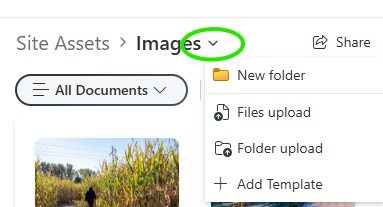
Insider tip: If you are used to seeing the upload button on the left, note that the upload option is also available from the small arrow next to the folder name.